How to play PUBG Mobile on PC
In this post you will find tips for playing PUBG Mobile on the PC using the BlueStacksTake advantage of the precision of keyboard and mouse...in addition to the larger screen for an immersive experience. Always update the.. BlueStacks and drivers to prevent crashes.
Install the game via Play Store and adjust the controls to your liking.
Install the game via Play Store and adjust the controls to your liking.
Running PUBG Mobile on a PC isn't just about power. Many people prefer a keyboard and mouse for the precision of movement and ease of aiming. Furthermore, the larger screen helps to see map details and identify enemy actions more clearly. Not to mention stability. On simpler phones, crashes are common. On a computer, even on mid-range models, performance tends to be more stable, provided the right program is installed and properly configured. But how do you run the game on a desktop?

How to play PUBG Mobile on PC
Install BlueStacks
BlueStacks is a program that simulates the Android system within Windows. It simulates a space where mobile applications can function on the computer as if they were on a phone, but adapted for keyboard, mouse, and a large screen.
Thanks to this, PUBG Mobile on PC works in an organized way, with access to the Play Store, Google account login, and controller support. Everything happens within this environment, without the need for complicated adjustments or third-party programs. It's worth remembering that the compatible version is the Windows version. On Apple computers, support is outdated and does not run recent versions of the application.
Next, install BlueStacks. After all, the first step to running PUBG Mobile on PC is to install BlueStacks correctly. The process is simple:
- Visit the official BlueStacks website;
- Download the Windows version;
- Open the installer and follow the on-screen instructions;
- Sign in with your Google account, just like you would on a mobile phone.
After these steps, the program will be ready to receive Android applications, including PUBG Mobile.
Installing PUBG Mobile within BlueStacks
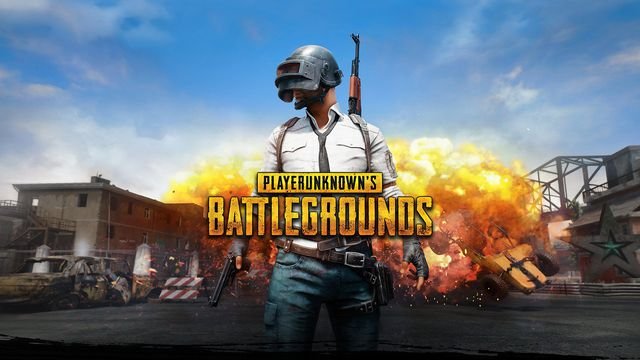
With BlueStacks open, the next step is to install PUBG Mobile on your PC directly from the Play Store. The path is very straightforward:
- Open the Play Store within BlueStacks;
- Search for “PUBG Mobile”;
- Start the installation normally;
- Please wait for the download to complete.
During this process, a notification may appear requesting the installation of a package, known as xPack. Simply confirm to continue.
Adjusting your keyboard and mouse correctly
After installation, PUBG Mobile on PC needs to recognize keyboard and mouse commands. BlueStacks already provides automatic mapping, but you can adjust everything to your preference. In the corner of the screen there is a keyboard icon. Clicking on it takes you to the control settings. There you can:
- See which keys are associated with each action.
- Change commands that are not comfortable to use.
- Create new keys for specific functions.
These adjustments make all the difference in performance during matches, making the controls feel more natural for you.
Recommended settings for best performance
Running PUBG Mobile smoothly on PC also depends on some internal BlueStacks settings. Within the general settings, you can configure:
- Amount of RAM used by the program.
- Number of processor cores.
- Screen resolution.
- Frame rate.
On simpler computers, reducing the resolution helps a lot. On more powerful machines, freeing up more resources improves stability and reduces crashes.
Is it possible to install PUBG Mobile Lite on a computer?
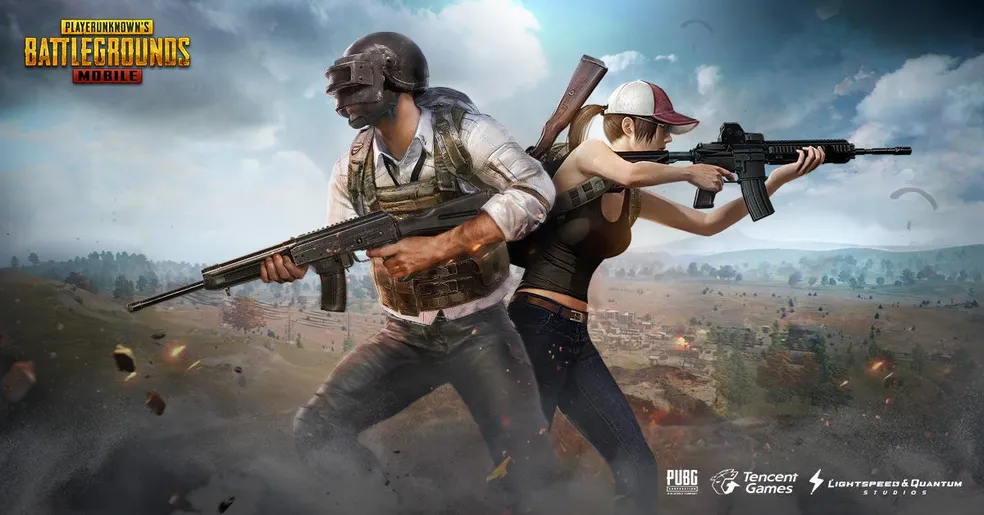
Yes, in addition to the standard version, there's PUBG Mobile Lite. It was designed for more modest devices and also works within BlueStacks. If your computer isn't very powerful, this alternative is very helpful.
The installation process for Lite is exactly the same. Just search for it on the Play Store and install it. For those experiencing slowdowns in the traditional version, Lite usually runs more smoothly while maintaining the game's main features. Therefore, PUBG Mobile on PC remains accessible even on older machines.
Important tips for installing PUBG Mobile on PC
Here are some tips to help keep running smoothly on your PC
- Keep BlueStacks updated;
- Use the latest video drivers;
- Close resource-intensive programs running in the background;
- Adjust graphics according to your computer's capabilities.
These simple actions prevent performance drops and make matches more stable over time. Furthermore, now that you know the whole process, it's much easier to get started and adjust everything to your liking, enjoying every match directly from your PC.