How to enable multiplayer in Minecraft on Android and iPhone
This post contains a guide on how to enable multiplayer mode in Minecraft for Android and iPhone. See how to connect your Microsoft account, adjust permissions , and invite friends to explore your world, either on a local network or online.
Multiplayer in Minecraft is the mode that allows other people to enter the same world you've created. Instead of playing alone, you share the map in real time. Each person appears in the same environment, can build, mine, plant, fight creatures, and interact with blocks normally.
On mobile, this mode works through the Bedrock Edition, which replaced the old Pocket Edition. This version runs on Android and iPhone (iOS) and also communicates with compatible consoles and PCs.
To access this feature, you need to have the game installed from the official stores: Google Play Store on Android and App Store on iPhone. The paid version unlocks all features. There is also a trial version, which works for a limited time and does not unlock public online servers, but still allows local network play.
Basic requirements before you begin
Before enabling multiplayer in Minecraft , a few things need to be set up:
- Microsoft account connected to the game;
- Active internet connection (for online games);
- Multiplayer mode permission enabled in world settings;
- Friends list added via gamertag.
Without being logged into your Microsoft account, the online system won't work. Your account connects you to the Microsoft network and allows you to send and receive invitations.
To download on Android, use the Google Play Store . On iPhone, use the App Store. The price may vary depending on promotions, but it's usually a one-time payment. The trial version allows you to play in a single world for a limited time. Online servers are unavailable in this mode, but the local network (LAN) works if everyone is connected to the same Wi-Fi network.
After installation, open the game and sign in with your Microsoft account. This step is required to enable multiplayer in Minecraft outside of your local network.
Multiplayer on a local network (LAN)
If everyone is connected to the same Wi-Fi network, it's not necessary to use external servers. It's sufficient that:
- One device creates the world;
- The multiplayer option is enabled;
- The other devices open Minecraft;
- The world will automatically appear in the "Friends" tab.
Online multiplayer via the internet
When each person is in a different location, the connection needs to happen via the internet. In this case:
- The Microsoft account must be active;
- Friends need to be added;
- The world should be set up to accept guests.
Here, multiplayer in Minecraft works through Microsoft's infrastructure. The world creator needs to be online for guests to join, unless they are using a dedicated server or the Realms service.
How do I enable multiplayer in Minecraft?
To activate, you need to follow the steps below:
- Open Minecraft on your phone;
- Sign in to your Microsoft account;
- Tap on “Play”;
- Create a new world or edit an existing one;
- In the world settings, enable the multiplayer option;
- Adjust who can enter (friends or friends of friends);
- Enter the world;
- Open the menu and tap on “Social”;
- Select “Invite to play”;
- Select a friend from the list and send the invitation.
When the person accepts, they automatically enter your world. If the name doesn't appear, use the "Search for people" function and enter the gamertag correctly. After you add each other, the invitation will work normally. This is the standard procedure for using multiplayer in Minecraft on Android and iPhone.
Minecraft Realms: a cloud-hosted world
Minecraft Realms is an official subscription service. It keeps the world active on cloud-hosted servers. Therefore, the map remains available even when the creator leaves.
There are two main planes in Bedrock:
- Realms Core: You + up to 2 other people simultaneously.
- Realms Plus: You + up to 10 other people simultaneously.
Both plans offer:
- Server active 24 hours a day.
- Automatic backups.
- Three world slots.
- Invitations for up to 10,000 friends.
- Compatibility between Bedrock platforms.
Important settings within the world
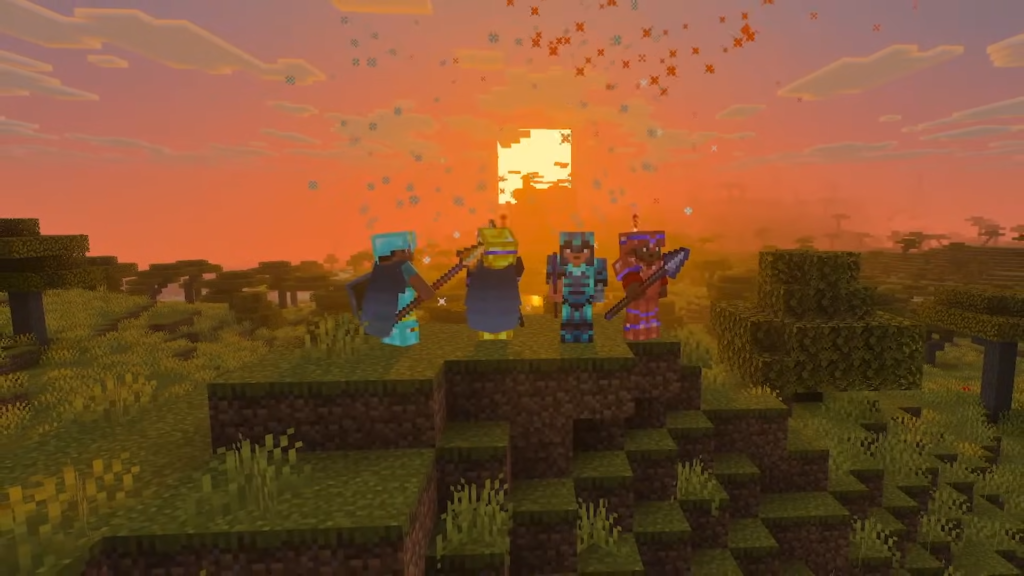
Before granting access, it's worth checking:
- The world's difficulty.
- Building permits.
- Whether or not to activate Creative mode.
- Cheats enabled or disabled.
- Protection against fire or explosion damage (if necessary).
These settings prevent unwanted changes. In Minecraft multiplayer, anyone with permission can modify blocks, open chests, and alter structures.
Multiplayer functionality in Minecraft on mobile basically depends on three things: the game installed from the official store, a connected Microsoft account, and correct world settings. You can choose between a local network, a traditional online connection, or a server via Realms. Each format serves a different need.